Hacking Tools

Here are some hacking tools.

Crack MD5

Here top tools for crackig md5 to noral text.

Photo Editing

Top online tools for editing photos.

Thursday, August 1, 2013

List of Facebook Contact Forms

List of Facebook Contact Forms to report your Problems

Many of us are unaware that we can contact Facebook for any problem.

Here is the solution with links to report your problem to Facebook.
(you will be replied within a hour with proper reasons from Facebook team)


LOGIN/PASSWORD


Link:


http://www.facebook.com/help/contact/?id=357439354283890


FRIENDS


Link:


http://www.facebook.com/help/contact/?id=304512289600871 


CHAT


Link:


http://www.facebook.com/help/contact/?id=175070195930673 


SEARCH


Link:


http://www.facebook.com/help/contact/?id=137406866379070 


EVENTS


Link:


http://www.facebook.com/help/contact/?id=348719565146937 


NOTES


Link:


http://www.facebook.com/help/contact/?id=346933711993277 


PHOTOS


Link:


http://www.facebook.com/help/contact/?id=372307462785962 


VIDEO


Link:


http://www.facebook.com/help/contact/?id=336620663035125 


GROUPS


Link:


http://www.facebook.com/help/contact/?id=197060467057875 


MESSAGES


Link:


http://www.facebook.com/help/contact/?id=143318592452565 


WALL


Link:


http://www.facebook.com/help/contact/?id=245149042230076 


Chat Disconnections


Link:


http://www.facebook.com/help/contact/?id=220877088001498


CHAT LOADING


Link:


http://www.facebook.com/help/contact/?id=315628398473786 


Notifications


Link:


http://www.facebook.com/help/contact/?id=269067606491964 


DELETE ACCOUNT


Link:


https://www.facebook.com/help/delete_account 


EMAIL NOTIFICATIONS


Link:


http://www.facebook.com/help/contact/?id=156923807754889 


VALIDATION ERROR


Link:


http://www.facebook.com/help/contact/?id=313236388711581 


DATABASE DOWN ERROR


Link:


http://www.facebook.com/help/contact/?id=239819856095662 


MY VIDEO DELETED


Link:


http://www.facebook.com/help/contact/?id=333113853388695 


CANT UPLOAD MY VIDEO


Link:


http://www.facebook.com/help/contact/?id=335534829811622 


UNABLE TO SELECT PHOTOS


Link:


http://www.facebook.com/help/contact/?id=242812382460330 


STACK OVERFLOW ERROR


Link:


http://www.facebook.com/help/contact/?id=291873217536716 


BAD PARAMETER ERROR


Link:


http://www.facebook.com/help/contact/?id=179502468823968 


MEMORY ERROR ON LINE


Link:


http://www.facebook.com/help/contact/?id=144349732348089 


AJAX TRANSPORT ERROR


Link:


http://www.facebook.com/help/contact/?id=141241732660240 


PAGE NOT FOUND ERRORS


Link:


http://www.facebook.com/help/contact/?id=344168102274041 


WALL VISIBILITY ISSUES


Link:


http://www.facebook.com/help/contact/?id=175810582525537 


MISSING WALL POSTS


Link:


http://www.facebook.com/help/contact/?id=144040449046092 


REPORT A BLANK HOME PAGE


Link:


http://www.facebook.com/help/contact/?id=239109279503092 


OLDER WALL POSTS NOT SHOWING UP


Link:


http://www.facebook.com/help/contact/?id=297117693669933 


Posts Not Appearing in News Feed


Link:


http://www.facebook.com/help/contact/?id=167649556677152 


REMOVE ALL IMPORTED CONTACTS


Link:


http://www.facebook.com/contact_importer/remove_uploads.php 


DATABASE WRITE FAILED ERROR


Link:


http://www.facebook.com/help/contact/?id=164730706970192 


AUTHENTICATION FAILURE ERROR


Link:


http://www.facebook.com/help/contact/?id=180444985395694 


Message or Invitation Delivery


Link:


http://www.facebook.com/help/contact/?id=266169926783577 


UNAVAILABLE GROUP OR EVENT


Link:


http://www.facebook.com/help/contact/?id=157461604368161 


PAGE NOT DISPLAYING IN SEARCH


Link:


http://www.facebook.com/help/contact/?id=265114693573520


Link:


http://www.facebook.com/help/contact/?id=279322662131643 


UPLOADING IMAGES WITH FLASH/ADVANCED UPLOADER


Link:


http://www.facebook.com/help/contact/?id=282518008478670 


CONFIRM UR FACEBOOK ACCOUNT


Link:


http://www.facebook.com/help/contact/?id=174964429275926 


FACEBOOK ON MOBILE


Link:


http://www.facebook.com/help/contact/?id=110188012426789 


Facebook Will Be Back Soon Error


Link:


http://www.facebook.com/help/contact/?id=287306364658247 


ISSUE WITH CONTACT BOOK


Link:


http://www.facebook.com/help/contact/?id=315247071843840 


FACEOOK ADS SUCCESS STORY


Link:


http://www.facebook.com/help/contact/?id=241872835888262 


FACEBOOK PAGE DISABLED


Link:


http://www.facebook.com/help/contact/?id=259144137491847 


Pages that Disappeared


Link:


http://www.facebook.com/help/contact/?id=167646843343666 


Content Lost During Reactivation 


Link:


http://www.facebook.com/help/contact/?id=270321339699849 


ONLINE FRIENDS APPEAR OFFLINE


Link:


http://www.facebook.com/help/contact/?id=240186386056090 


"Please Send Money" Scam


Link:


https://www.facebook.com/help/contact/?id=205716696190114 


REPORT A UNDERAGE CHILD


Link:


http://www.facebook.com/help/contact/?id=210036389087590 


REPORT A UNDERAGE CHILD(SPAIN)


Link:


http://www.facebook.com/help/contact/?id=297985680252341 


Report a Convicted Sex Offender


Link:


http://www.facebook.com/help/contact/?id=207005222725325 


Questions About Usernames


Link:


http://www.facebook.com/help/contact/?id=360358877344441 


INFRINGEMENT BY AN APP


Link:


http://www.facebook.com/help/contact/?id=179237725509161 


Report Unauthorized Content - Child Under 13


Link:


http://www.facebook.com/help/contact/?id=331325450232194 


Unauthorized Photo - Under 13 Year Old Child


Link:


http://www.facebook.com/help/contact/?id=181623015268436 


I'm Being Told I Entered The Wrong Password When Importing Contacts


Link:


http://www.facebook.com/help/contact/?id=228484517236675 


FEEDBACK FORUMS:


HOMEPAGE


Link:


http://www.facebook.com/help/contact/?id=287138941345702 


MESSAGES


Link:


http://www.facebook.com/help/contact/?id=142868349164345 


SEARCH


Link:


http://www.facebook.com/help/contact/?id=308826252486563 


EVENTS


Link:


http://www.facebook.com/help/contact/?id=229255493828038 


GROUPS


Link:


http://www.facebook.com/help/contact/?id=243225585752893 


VIDEOS


Link:


http://www.facebook.com/help/contact/?id=200777943353522 


NOTES


Link:


http://www.facebook.com/help/contact/?id=207738915987980 


MOBILE


Link:


http://www.facebook.com/help/contact/?id=303280459688816 


PAGES


Link:


http://www.facebook.com/help/contact/?id=354963731183415 


PRIVACY


Link:


http://www.facebook.com/help/contact/?id=363348737009250 


NOTIFICATIONS AND EMAILS


Link:


http://www.facebook.com/help/contact/?id=288803561176040 


FACEBOOK


Link:


http://www.facebook.com/help/contact/?id=142315805886940 

Wednesday, July 31, 2013

Change the background of Windows Media Player

Change the background of Windows Media Player:

Windows Media Player provides the option to change the background is not perfect, but we have to follow these steps to change the background of Windows Media Player So, the problem is not to change it through the registry in Windows 7 is the trick:


1) Go to run and "Regedit" type registry editor will open.

2) the registry editor, locate the key
HKEY_CURRENT_USER \ Software \ Microsoft \ MediaPlayer \ Preferences

3) Click on the key LibraryBackgroundImage 0 6 (no background in each data) between the value of the double.

Sunday, July 21, 2013

Motherboard Drivers

Sites To Download Motherboard Drivers Motherboard Drivers If you are lost and want to find the motherboard drivers according to Brand your PC or Laptop, here I give you the info some websites that provide free motherboard drivers. Link to download motherboard deliberately takes on the official website so that you do not need fear infiltrated a trojan or virus. 

1. ASUS


2. Gigabyte

3. Intel

4. MSI

5. PCChips

6. BIOSTAR

7. ASRock

8. AOpen

9. ECS

10. Jetway

11. Iwill

12. ABIT

13.Chaintech

14. EPoX

15. Foxconn

Monday, March 18, 2013

8 Free Tools to Find What Files and Folders are Taking Up Hard Drive Space


When someone tells you they’re running out of hard drive space, the first thing you would probably tell them to do is to clean up the system using a program such as CCleaner to remove all the junk and temp files which can take up a few Gigabytes. Uninstalling old software might free up some more depending how many useless programs they have installed.
Even after doing those things, your system might still be left with less that 10% free space remaining and Windows doesn’t really like that. Other areas of the drive might have been filled in folders you wouldn’t normally look in. For instance, I’ve seen the Windows\SoftwareDistribution folder take over 50GB of space and that folder is not somewhere you or a cleaning program would usually check.

The standard thing to do would be to check the properties of each top level folder and navigate your way down until the culprit files and folders are found. This could certainly waste a lot of time and isn’t efficient. Thankfully there are much better solutions for how to find out what files and folders are taking up hard drive space, and here’s a selection of 8 free tools to do just that.
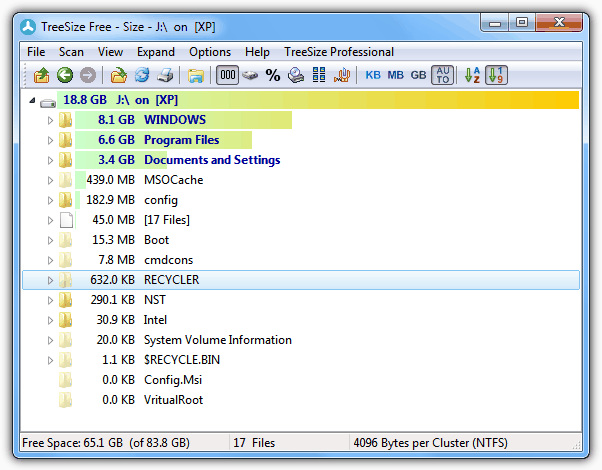
1. TreeSize Free
TreeSize
TreeSize Free is a popular tool because it’s fast and within seconds gives you a fair idea which root folders are taking up the most space. The occupied proportion of space each folder takes up is show by a series of graphical bars, and when you click to open each subfolder, the same bar layout shows the space proportions for that folder.
To start scanning click the Scan menu and select a drive or folder, the information will start to show on screen immediately as it gets scanned. Changes can be made to the way the space tree looks, for example the text can be changed from size to file count to percentage, and you can also change the gradient colors on the size bar. Include/Exclude filters can be applied, and the program can be configured to let you easily run a scan from the Explorer context menu.
There are 3 versions available, installer and 2 portable versions, of which 1 is for U3 USB sticks. TreeSize Free works on Windows XP / 2003 and above.
2. SpaceSniffer
SpaceSniffer
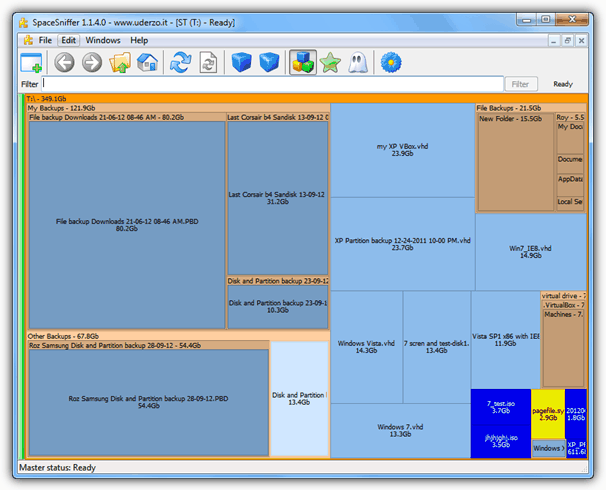
I’m a big fan of SpaceSniffer because apart from being fast, it’s visual treemap layout can quickly give a very good idea of which files or folders are taking up the biggest amount of space on your drive. This has an advantage over software that only shows a bar or pie chart etc, because you can already see several layers down, so a massive file buried inside multiple subfolders is instantly visible.
Simply choose a drive or folder to scan from the box when you start SpaceSniffer and within a few seconds you will be able to recognize larger folders (brown boxes) and files (blue boxes), the bigger the box, the more space it occupies. Folders can be navigated down even further by double clicking on them, or the amount of detail can be increased using the blue box icons in the toolbar.
The 3 little box icon also shows different types of files in different color boxes, this can also be configured or added to if you wish. For example, the bright blue boxes are archives and disc images, and the yellow are exe’s, dll’s and sys files. SpaceSniffer is a portable executable and works with Windows XP and above.
3. RidNacs
RidNacs
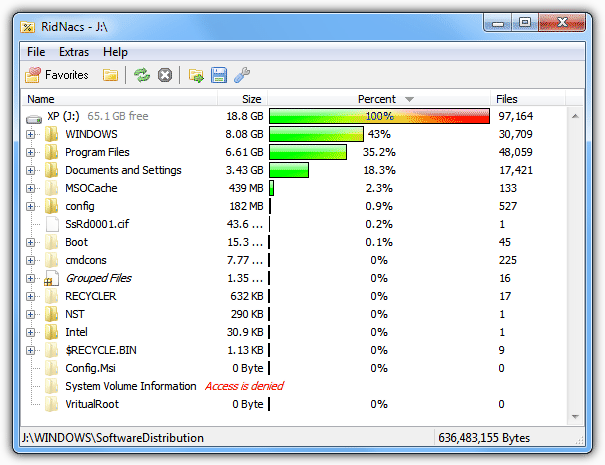
This program is like a simpler version of TreeSize in that it displays a number of bars to represent the percentage of space occupied on the drive or in the folder. It can show files in the tree and also the folder size, percent and number of files all at once though which might be more helpful.
To scan simply press the yellow folder icon in the toolbar or click on the favorites button which should have your drives and any visited folders listed for quick access. The scan is fast and a report can be saved in an HTML / XML or CSV file. The size bars can also be changed to different preset colors which is useful as the default blue stripe isn’t great.
RidNacs isn’t portable by default but can be made so by extracting the installer with Universal Extractor. The website is also in German but the program is easy to use and can be downloaded from somewhere like the Softpedia link provided below.
4. Folder Size
Folder Size
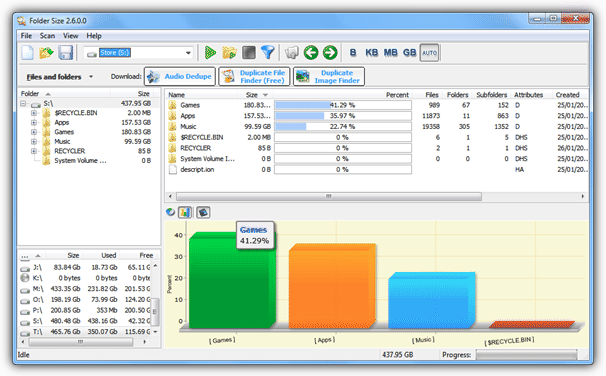
The free version of Folder Size is still perfectly usable but lacks a few features because they’re included in the shareware versions; filters, export results, scanning over a network and command line options. If you have Adobe Flash installed, you get some nice animated bar charts or pie charts to represent the used space percentages.
Start the program and choose the drive from the drop down and press the green scan icon, or a folder using the green / yellow icon. Information isn’t available until the process has completed which is pretty fast, and then you will get both a text based view of the folder sizes and also the graphical view, either of which can be turned off. Then simply navigate your way around to see which files and folders are taking up the space.
Both portable and installer versions are available and Folder Size is compatible with Windows 98 and above.
5. Xinorbis
Xinorbis
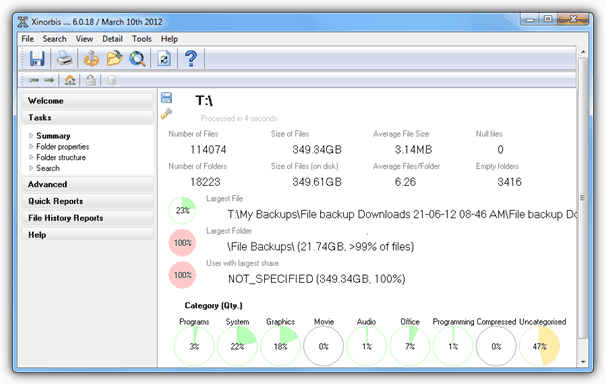
If you’re someone who likes to digest large amounts of information then Xinorbis could be for you. This is because it analyzes and gives you information for just about everything that’s occupying your hard drive space and the data is displayed in a number of different ways. There are separate windows for things like file types, extensions, history and size levels etc, which have text based and bar chart or pie charts graphical displays.
The initial Summary screen will give some useful data about things like the largest file and the folder taking up the most space with a few small charts for extra detail. Click Folder Properties and all the different ways the statistics can be presented are available. There are some other useful options in Advanced such as finding duplicate files and a comprehensive reporting system is available that can export the data to a number of formats.
Xinorbis sometimes looks as if it’s crashed, but usually that’s just because of all the information and data being being read in. Installer, portable and also a useful command line version is available for download. Compatible with Windows 2000 and newer.
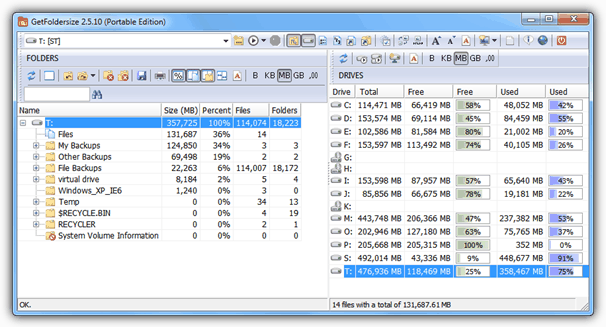
6. GetFolderSize
GetFolderSize
This program’s interface looks rather messy when first started because there are 3 lists open with each having it’s own set of icon buttons. Expand the window or close the file and/or drive lists and it starts to look much better.
GetFolderSize is mostly text based so you won’t get to find out what is eating your hard drive space as quick as you would with a tool like SpaceSniffer, but extra options such as scanning optical media, network shares and hard links or junction points make it very useful for slightly more advanced use. Each list can be individually saved or printed and once you have the layout to your liking, there’s a lot of useful information to be found.
The installer version of GetFolderSize is compatible with Windows 2000 and above, the portable version from Windows XP SP1 and above. The program is free for private and commercial use.
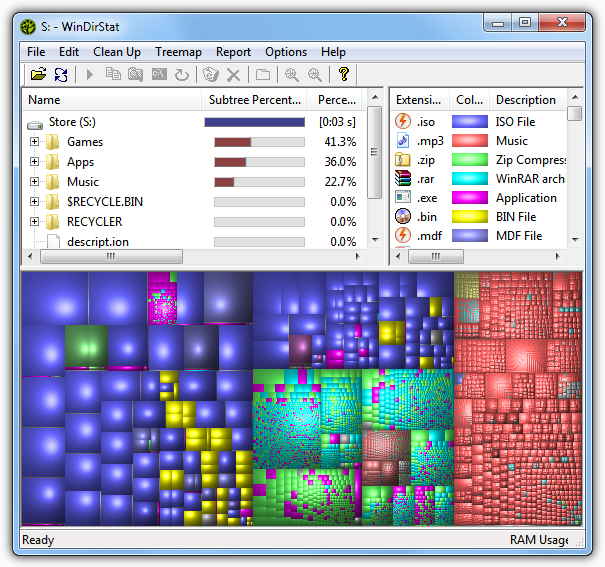
7. WinDirStat
WinDirStat
WinDirStat is another tool to use the treemap visual interface which shows you the size of individual files by displaying them as a series of boxes to represent their space on the drive. There are some useful extra functions such as opening a Command Prompt at the location you’re clicking on or emptying the recycle bin before a scan to remove any large files not fully deleted.
If you have more than 1 drive to scan they can be selected on startup by highlighting which ones you want. The display is split in 3 parts, 1 for the treemap, 1 for the directory tree and the top right window for telling you what the treemap colors represent. Although I think SpaceSniffer does a far better job with the treemap and is easier to read, WinDirStat is still a popular tool and the colors can be altered to your liking.
WinDirStat works on just about any version of Windows right back to Windows 95. Although the website doesn’t host a portable version, you can get it at PortableApps.com.
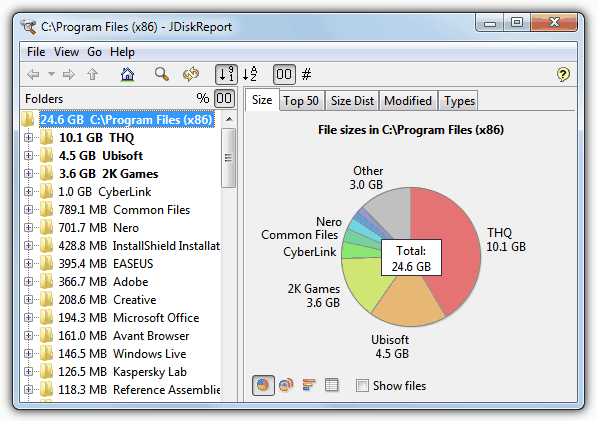
8. JDiskReport
JDiskReport
JDiskReport is a tool that runs using Java meaning you need the Java Runtime Environment version 5 or newer to use it. What’s quite good is the different ways in which you can visually view the information. For instance, the size of a folder or drive can be displayed as different looking charts such as a pie, ring, bar or a details list. The color of the charts or the interface look can be changed and a context menu menu option can be integrated into Explorer.
Starting the program gives options to select the folder or drive to scan along with a few previous scan locations and the option to load back in a previously saved scan result. There are different tabs to view the information in different ways including a size tab which gives the overall size of the selected location, and a Top 50 tab which shows a list view of the 50 largest, least recently modified or most recently modified files.
Although the program comes as an installer, to get a portable version extract the installer with 7zip or similar and then you can execute the jdiskreport.jar file. Being made in Java means JDiskReport is supported on a number of platforms including Mac OSX and Linux as well as Windows.
Important Note: Unless you’re very sure that files or folders can safely be deleted, don’t delete them from within these programs. Just because it might be taking up lots of space, you need to check first that it’s not part of the system which could cause a problem if you remove something that’s required for running Windows.


Saturday, March 9, 2013

Friday, December 2, 2011

How to monitor your time spent Web surfing

The Internet is full of useful information. It's also full of lots of distractions that can prevent you from being productive at work or at home. If you're curious what sites you spend the most time on, or are concerned with how much time you spend not working on the job, follow these five steps to monitor your browsing habits.

Begin by downloading and installing Gold Limiter. When installing, you will be given the option to add the Internet monitor and filter, or just the Internet monitor. Chances are, you're only interested in the monitor, so select that option.

Step 1: Run the program from the desktop or Start menu. On first run, you will prompted to set up a password and security question. This is recommended if you'd like to keep your browsing records private.

Step 2: Follow the setup wizard to adjust your monitor settings. First up are timing settings. Preset options are available for monitoring at all times or just during work hours, and you can also enter your desired times manually.

Step 3: Adjust the settings for reporting. You can choose to receive reports daily, weekly, monthly, or not at all from the program.
(Optional) Step 4: If you're monitoring your browser activity at work, the next page of the wizard has a setting for your hourly earnings. If you set this, your reports will show you how much money you're wasting with your browsing habits.


Google Chrome Step 5: From the main window, click on a report type to see what sites you spend the majority of your time on.
Whether your productivity is low at work or you're a parent concerned with your child's browsing, you're sure to gather a few bits of useful and interesting information from running this program.


Source:http://news.cnet.com

Thursday, December 1, 2011

Google, Microsoft, Yahoo, AOL join Agari anti-phishing service

The major Web-based e-mail providers are joining forces with an anti-fraud startup, which is launching tomorrow, to help keep phishing messages out of peoples' inboxes.


Google, Microsoft, Yahoo, and AOL are providing metadata from messages that get delivered to their customers to Palo Alto, Calif.-based Agari so it can be used to look for patterns that indicate phishing attacks. Agari collects data from about 1.5 billion messages a day and analyzes them in a cloud-based infrastructure, according to Agari CEO Patrick Peterson.


The company aggregates and analyzes the data and provides it to about 50 e-commerce, financial services and social network customers, including Facebook and YouSendIt, who can then push out authentication policies to the e-mail providers when they see an attack is happening.
"Facebook can go into the Agari console and see charts and graphs of all the activity going on in their e-mail channel (on their domains and third-party solutions) and see when an attack is going on in a bar chart of spam hitting Yahoo," for instance, Daniel Raskin, vice president of marketing for Agari, told CNET in an interview. "They receive a real-time alert and they can construct a policy to push out to carriers (that says) when you see this thing happening don't deliver it, reject it."
Agari doesn't collect the actual messages, he said. Some e-mail providers will take a message that is failing authentication and provide the malicious URLs in it to Agari to pass on to the company whose name is being used in the phishing messages, Raskin said. "Other than that we don't want to see the content," he said.
Google expects Gmail users to benefit as more mail senders authenticate their messages and implement block policies.
"Since 2004 Gmail has supported several authentication standards and developed features to help combat e-mail phishing and fraud," Google Product Manager Adam Dawes said in a statement to CNET. "Proper coordination between senders and receivers is the best way to cut down on the transmission of unauthorized mail, and AGARI's approach helps simplify this process."
Agari, which has been operating in stealth mode since October 2009, rejected more than 1 billion messages across its e-mail partners' networks in a year, according to Peterson, who was with the original management team of e-mail security firm IronPort. IronPort got acquired by Cisco in 2007.
Agari protects 50 percent of U.S. consumer e-mail traffic and more than one billion individual mailboxes.
Originally posted at InSecurity Complex
Source:http://news.cnet.com

Thursday, October 13, 2011

Usefull Ebooks

 rc4-misuse.pdf   The Misuse of RC4 in Microsoft Word and Excel
 802.11_attacks.pdf   802.11 Attacks
 ActiveX_active_expl.pdf   ActiveX - Active Exploitation
 address-spoof.txt   Address Bar Spoofing Attacks Against IE 6
 Address_Resolution.txt   Understanding Address Resolution Protocol Attacks
 adv-buff-overflow.txt   Advanced Buffer Overflow Exploits
 Adv-Shell-Tech.txt   Advanced Shellcoding Techniques
 Advanced_SQL_Injection.pdf   Advanced SQL Injection In SQL Server Applications
 afs.ps   Highjacking AFS
 brute_force_analysis.txt   Analysis of Brute Force & Dictionary Attacks
 Anatomy_of_Malware.pdf   Anatomy of a Malware
 anomaly_rules_def.pdf   Using Snort as an anomaly based IDS
 AnonMax.txt   How to maintain your anonymity on the web
 appOSfingerprint.txt   Advanced application-level OS fingerprinting
 aspmail-spoof.pdf   ASP CDONTS.NEWMAIL object E-mail Spoofing
 Oracle_PL_SQL_Injection.pdf   Assault on Oracle PL SQL Injection
 xss-attack-defense.txt   Cross Site Scripting - Attack and Defense guide
 banking-flaws.pdf   Internet Banking Flaws In India
 beginners.txt   Beginners guide to UNIX Hacking
 Biologger.pdf   Biologger - A Biometric Keylogger
 biosdefault.txt   Default BIOS passwords
 Blind_MySQL_Injection.pdf   Blind MySQL Injection
 cryptography_basics.pdf   Basics of Cryptography
 browserhack.txt   Hacking from your Web Browser
 bsdkern.htm   Attacking FreeBSD with Kernel Modules
 Buffer_Overflow.txt   Buffer Overflow Tutorial
 Bypassing_NAC.pdf   Bypassing network access control (NAC) systems
 clickjack-xss.txt   The Clickjacking Meets XSS: A State Of Art
 Spyware_Intro.pdf   Introduction to Spyware
 defaultpasswords.txt   Default Passwords for network switches and devices
 dns-writeup.txt   DNS cache poisoning then and now
 dsniff_netmon.txt   Network Monitoring with Dsniff
 email_and_telnet.txt   Sending Emails via SMTP and Telnet
 Erasing_Logs.txt   Erasing Your Presence From System Logs
 ErrSQL_Inj.pdf   Error based SQL Injection
 format_string_exp.txt   Exploiting Format String Vulnerabilities
 faqar.txt   Remailers FAQs
 ffp.pdf   Fuzzy Fingerprinting
 firewall-stego.txt   Bypassing firewalls through protocol stenography
 FirewallsFAQ.txt   Firewalls FAQs
 advanced_xss.txt   Advanced Cross-Site-Scripting
 vista_dll_injection.pdf   Windows Vista DLL Injection
 IDS_Agents.pdf   IDS Using Security Agents
 whid_2008.pdf   Web Hacking Incidents Database 2008
 expl_buff_ovfl.pdf   Exploiting Buffer Overflows
 IIS_Exploitation.txt   Guide to IIS Exploitation
 finger.txt   Finger a user via telnet
 hacker-howto.html   How To Become A Hacker
 hackers-rfc.txt   The Hacker's RFC
 hackfaq.zip   The Hack FAQ
  hackkit-2.0b.txt   Hacking Kit v2.0
 hackpage.txt   Hacking Webpages The Ultimate Guide
 hackpw.txt   How to crack a unix password file
 HostFingerprinting.pdf   Host Fingerprinting and Firewalking With hping
 Honeywalldetection.pdf   How to detect Honeypots using hping
 host-detection.doc   Advanced Host Detection Techniques
 Bypass_BIOS.txt   How to Bypass BIOS Passwords
 find-ftps.txt   How To Find Ftp's The Easy Way
 modify_exe.txt   How to modify exe files
 httprint_paper.zip   Introduction to HTTP fingerprinting
 UnicodeExpl.doc   Unicode exploitation with how it works
 Info-Gathering.txt   The Info-Gathering Tutorial
 int-arr-overfl.txt   Integer array overflows
 intv2-8.pdf   A Network Intrusion Detector
 ip-faq.htm   An IP address FAQ
 tcp-attack.txt   Simple Active Attack Against TCP
 ipspoofing_dem.zip   IP-spoofing Demystified
 inetsec.txt   A Guide to Internet Security
 ip-spoof.txt   A short overview of IP spoofing
 anon-ftp-faq.htm   Anonymous FTP FAQ
 pack_cap.htm   Network Packet Capture FAQ
 javascript_fun.txt   how javascript can be used to bypass html forms
 John_The_Ripper.pdf   John The Ripper -An Illustrated Guide
 Learning_Perl.pdf   Learning Perl Writing Exploits
 Info_Gather.pdf   Learn Information Gathering By Example
 vuln_look.txt   Looking for Vulnerabilities
 linux-kernel.txt  The Linux Kernel HOWTO
 linux-shell-ref.pdf   LINUX SHELLCODING REFERENCE
 firewalls-loc.txt   Locating Stateless Firewalls
 mac_addr_clon.pdf   "Cloning MAC Addresses" Whitepaper
 metasploit_expl.txt   Metasploit 3.0 Automated Exploitation
 dns_spoof.htm   DNS Spoofing and Abuse
 MiddleMan.pdf   Paper explaining man-in-the-middle attacks
 linux_tips.txt   Misc Linux Tips & Tricks
 secret_codes.txt   Mobile Secret Codes
 HackingFeeds.pdf   Feed Injection in Web 2.0

Credit: http://insecure.in/

Saturday, October 8, 2011

Friday, July 1, 2011

google chrome shortcuts

google chrome shortcuts(for Windows)

Ctrl+N Opens a new window.
Ctrl+T Opens a new tab.
Ctrl+Shift+N Opens a new window in incognito mode.
Press Ctrl+O, then select file. Opens a file from your computer in Google Chrome.
Press Ctrl and click a link. Or click a link with your middle mouse button (or mousewheel). Opens the link in a new tab in the background .
Press Ctrl+Shift and click a link. Or press Shift and click a link with your middle mouse button (or mousewheel). Opens the link in a new tab and switches to the newly opened tab.
Press Shift and click a link. Opens the link in a new window.
Ctrl+Shift+T Reopens the last tab you've closed. Google Chrome remembers the last 10 tabs you've closed.
Drag a link to a tab. Opens the link in the tab.
Drag a link to a blank area on the tab strip. Opens the link in a new tab.
Drag a tab out of the tab strip. Opens the tab in a new window.
Drag a tab out of the tab strip and into an existing window. Opens the tab in the existing window.
Press Esc while dragging a tab. Returns the tab to its original position.
Ctrl+1 through Ctrl+8 Switches to the tab at the specified position number on the tab strip.
Ctrl+9 Switches to the last tab.
Ctrl+Tab or Ctrl+PgDown Switches to the next tab.
Ctrl+Shift+Tab or Ctrl+PgUp Switches to the previous tab.
Alt+F4 Closes the current window.
Ctrl+W or Ctrl+F4 Closes the current tab or pop-up.
Click a tab with your middle mouse button (or mousewheel). Closes the tab you clicked.
Right-click, or click and hold either the Back or Forward arrow in the browser toolbar. Displays your browsing history in the tab.
Press Backspace, or Alt and the left arrow together. Goes to the previous page in your browsing history for the tab.
Press Shift+Backspace, or Alt and the right arrow together. Goes to the next page in your browsing history for the tab.
Press Ctrl and click either the Back arrow, Forward arrow, or Go button in the toolbar. Or click either button with your middle mouse button (or mousewheel). Opens the button destination in a new tab in the background.
Double-click the blank area on the tab strip. Maximizes or minimizes the window.
Alt+Home Opens your homepage in your current window.

Google Chrome feature shortcuts

Alt+F or Alt+E Opens the wrench menu, which lets you customize and control settings in Google Chrome.
Ctrl+Shift+B Toggles the bookmarks bar on and off.
Ctrl+H Opens the History page.
Ctrl+J Opens the Downloads page.
Shift+Esc Opens the Task Manager.
Shift+Alt+T Sets focus on the first tool in the browser toolbar. You can then use the following shortcuts to move around in the toolbar:
  • Press Tab, Shift+Tab, Home, End, right arrow, and left arrow to move focus to different items in the toolbar.
  • Press Space or Enter to activate toolbar buttons, including page actions and browser actions.
  • Press Shift+F10 to bring up any associated context menu (e.g. browsing history for the Back button).
  • Press Esc to return focus from the toolbar back to the page.
F6 or Shift+F6 Switches focus to the next keyboard-accessible pane. Panes include:
  • Address bar
  • Bookmarks bar (if visible)
  • The main web content (including any infobars)
  • Downloads bar (if visible)
Ctrl+Shift+J Opens Developer Tools.
Ctrl+Shift+Delete Opens the Clear Browsing Data dialog.
F1 Opens the Help Center in a new tab (our favorite).

Address bar shortcuts

Use the following shortcuts in the address bar:
Type a search term, then press Enter. Performs a search using your default search engine.
Type a search engine keyword, press Space, type a search term, and press Enter. Performs a search using the search engine associated with the keyword.
Begin typing a search engine URL, press Tab when prompted, type a search term, and press Enter. Performs a search using the search engine associated with the URL.
Ctrl+Enter Adds www. and .com to your input in the address bar and open the resulting URL.
Type a URL, then press Alt+Enter. Opens the URL in a new tab.
Ctrl+L or Alt+D Highlights the URL.
Ctrl+K or Ctrl+E Places a '?' in the address bar. Type a search term after the question mark to perform a search using your default search engine.
Press Ctrl and the left arrow together. Moves your cursor to the preceding key term in the address bar
Press Ctrl and the right arrow together. Moves your cursor to the next key term in the address bar
Ctrl+Backspace Deletes the key term that precedes your cursor in the address bar
Select an entry in the address bar drop-down menu with your keyboard arrows, then press Shift+Delete. Deletes the entry from your browsing history, if possible.
Click an entry in the address bar drop-down menu with your middle mouse button (or mousewheel). Opens the entry in a new tab in the background.
Press Page Up or Page Down when the address bar drop-down menu is visible. Selects the first or last entry in the drop-down menu.

Webpage shortcuts

Ctrl+P Prints your current page.
Ctrl+S Saves your current page.
F5 or Ctrl+R Reloads your current page.
Esc Stops the loading of your current page.
Ctrl+F Opens the find bar.
Ctrl+G or F3 Finds the next match for your input in the find bar.
Ctrl+Shift+G, Shift+F3, or Shift+Enter Finds the previous match for your input in the find bar.
Click the middle mouse button (or mousewheel). Activates auto-scrolling. As you move your mouse, the page automatically scrolls according to the direction of the mouse.
Ctrl+F5 or Shift+F5 Reloads your current page, ignoring cached content.
Press Alt and click a link. Downloads the target of the link.
Ctrl+U Opens the source of your current page.
Drag a link to bookmarks bar Saves the link as a bookmark.
Ctrl+D Saves your current webpage as a bookmark.
Ctrl+Shift+D Saves all open pages as bookmarks in a new folder.
F11 Opens your page in full-screen mode. Press F11 again to exit full-screen.
Ctrl and +, or press Ctrl and scroll your mousewheel up. Enlarges everything on the page.
Ctrl and -, or press Ctrl and scroll your mousewheel down. Makes everything on the page smaller.
Ctrl+0 Returns everything on the page to normal size.
Space bar Scrolls down the web page.
Home Goes to the top of the page.
End Goes to the bottom of the page.
Press Shift and scroll your mousewheel. Scrolls horizontally on the page.

Text shortcuts

Ctrl+C Copies highlighted content to the clipboard.
Ctrl+V or Shift+Insert Pastes content from the clipboard.
Ctrl+Shift+V Paste content from the clipboard without formatting.
Ctrl+X or Shift+Delete Deletes the highlighted content and copies it to the clipboard.